

The idea for this article came while I was working on our guide about making a home easier to live in.
In a section about living alone, I had included a short reminder about keeping your phone nearby and setting up its emergency features. It seemed like a small detail in a much bigger conversation. But the more I looked into it, the more I realized those few settings deserved some attention of their own.
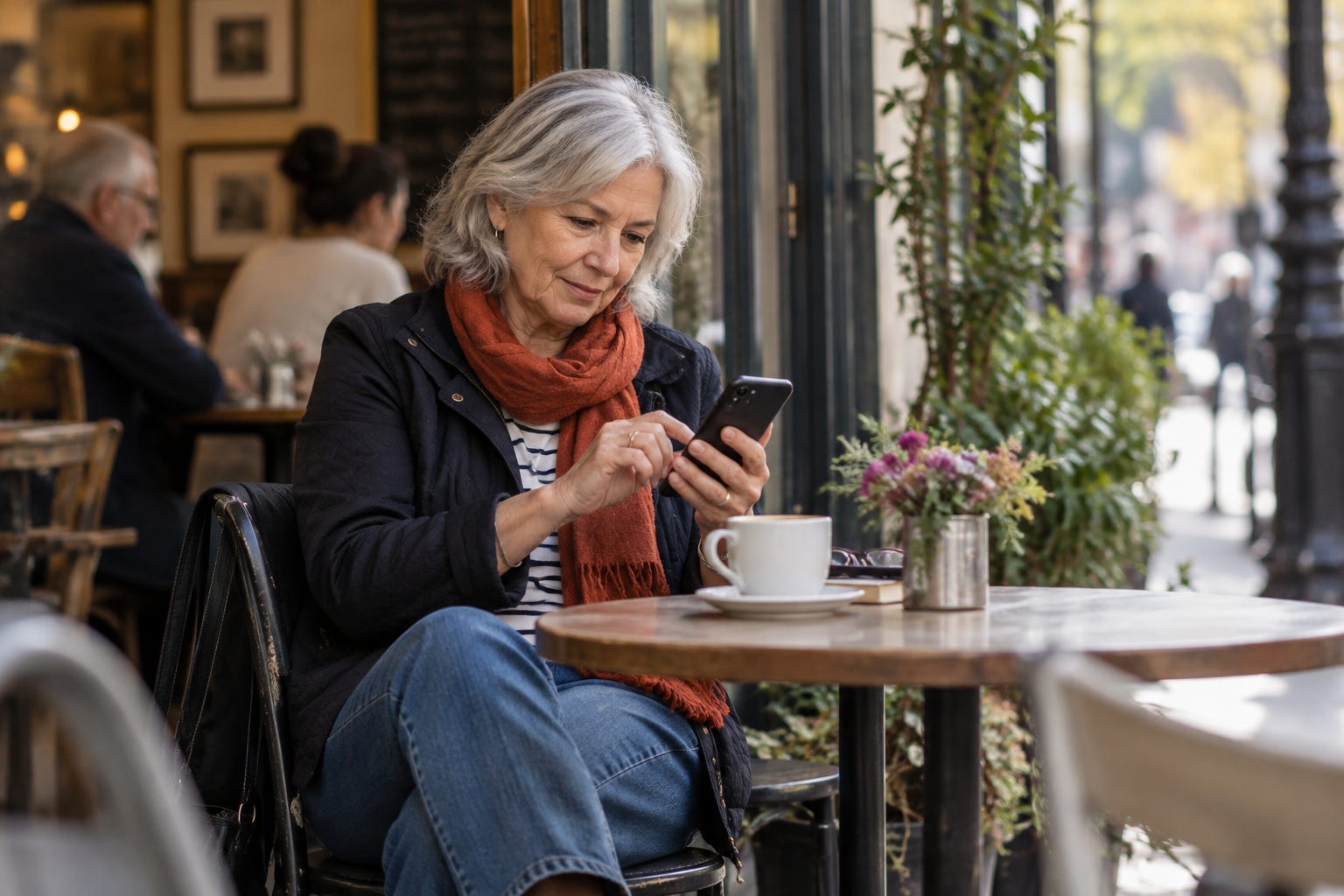
Most of us carry our phones everywhere. We use them to take photographs, read the news, check the weather, and keep in touch. Yet some of their most useful features are ones we may never have opened.
Two are particularly worth knowing about: Emergency SOS, which provides a shortcut to calling emergency services, and Medical ID, which makes selected medical information available from your locked phone.
Both are free. And both are worth setting up before you have any reason to need them.
Having a way to call for help is only half the story
In 2008, researchers at the University of Cambridge published a study in the BMJ following 110 people over the age of ninety.
They recorded 265 falls over a year. Most occurred when the person was alone, and many participants had difficulty getting up without assistance.
One finding was particularly striking: in 80% of falls where someone was alone, unable to get up, and had access to a call alarm, the alarm wasn’t used.
These were people in their nineties, and the findings shouldn’t be treated as predictions for everyone in their sixties or seventies. But they illustrate a practical distinction that matters at any age.
Having a way to summon help is useful. Knowing where it is, being able to reach it, and being willing to use it are separate questions.
I was reminded of this when my father fell in his garage.
I wrote about the experience in June, including the forty minutes he spent on the floor while his phone sat on the kitchen counter. He wasn’t seriously injured, fortunately, but the experience prompted a much larger conversation about safety and independence.
He now wears a smartwatch that can detect certain falls and help call for assistance. That earlier article explores what those watches can and cannot do.
A phone offers another option, provided it is charged, nearby, and accessible when needed.
Two features worth setting up
The first is Emergency SOS.
On supported smartphones, you can use a combination of physical button presses to begin an emergency call without first unlocking the phone and manually dialing the number. Depending on the device and its settings, the phone may also notify designated emergency contacts and share your location.
The second is Medical ID, sometimes called Emergency Information on Android.
This allows you to make selected medical details accessible from your phone’s lock screen. Someone helping you may be able to find important information without knowing your passcode.
These features serve different purposes. One helps you contact emergency services. The other helps someone assisting you find information you have chosen to make available.
Neither requires a paid subscription, though the available features depend on your phone, software and location.
Where to find them on your phone
If you have an iPhone:
Open the Health app, tap your profile picture and select Medical ID. You can enter or update your medical details and emergency contacts, then enable Show When Locked if you want that information accessible in an emergency.
Next, open Settings > Emergency SOS. Review the available ways to start an emergency call, including the side-button shortcuts, and check which options are enabled.
Apple’s guides: Set up Medical ID · Set up Emergency SOS
If you have an Android phone:
Look in Settings > Safety & emergency. On supported models, you can add emergency information and contacts and configure Emergency SOS.
On Google Pixel phones, the Personal Safety app provides additional settings. Samsung Galaxy phones have their own emergency options, including an SOS shortcut using the side button on supported models.
The names and locations of individual settings vary, so use the instructions for your specific phone: Google Android · Samsung
If you’d like a more detailed walkthrough, I also recommend this free guide to setting up Emergency SOS on iPhone and Android by Paul Wilczynski of TheSeniorTechie. Paul writes about technology for older adults in a refreshingly practical, straightforward way, and his guide is a useful companion if you’d like a little more help with the settings on your particular phone.
Before you try it: Review your Emergency SOS settings without triggering a real emergency call. Some phones will place a call automatically after a countdown.
And remember that connectivity, battery life and regional availability affect what these features can do.
What belongs in your Medical ID?
Imagine someone trying to help you who knows nothing about your medical history. What information would be genuinely useful?
Start with the essentials: current medications, important medical conditions, allergies and emergency contacts.
If you take medication regularly, check that the information is accurate. A list you completed two years ago may no longer reflect what you’re taking today.
Consider whether there are communication details someone helping you should know, such as hearing difficulties or a preferred language. Depending on your phone, you may have space for additional information.
You don’t need to turn your Medical ID into a complete medical autobiography. The goal is to make the most relevant information easy to find.
There’s also a privacy decision to make. If you enable access from the lock screen, other people who physically have your phone may be able to see those details. Choose what you’re comfortable sharing and review it periodically.
The people on your emergency list
Your phone may be ready to notify someone. But is that person ready to receive the notification?
This is the part of the setup that deserves a conversation.
Ask the people you’ve chosen whether they’re comfortable being your emergency contacts. Make sure the phone numbers are correct, and explain what you would want them to do if they received an alert.
Distance matters, too. A relative living across the country may be the right person to coordinate decisions, while a nearby friend or neighbor may be better placed to check on you quickly.
You may want both.
It’s also worth reviewing who has a spare key, how someone could reach you if you didn’t answer the phone, and whether your contacts have the information they would need to help.
None of this requires an elaborate emergency plan. Often, a short conversation now prevents uncertainty later.
The decision worth making before an emergency
There is one other lesson in that Cambridge study.
Some people who had alarms didn’t use them even when they needed help getting up. The reasons varied, including practical difficulties and reluctance to summon assistance.
It’s easy to understand why someone might hesitate. An unexpected medical event can be frightening, and accepting help may bring questions about independence that a person would rather avoid.
But there is a considerable difference between choosing how you want to live and having to decide whether to ask for help while injured or unable to get up.
It may be useful to talk about that distinction beforehand, with someone you trust.
A phone can make contacting help easier. It cannot make that decision for you.
A useful thing to do this weekend
Open your phone’s emergency settings and look at what’s already there.
Check your Medical ID or Emergency Information. Make sure your contacts are current. Find out how Emergency SOS works on your particular device, without placing a test emergency call.
Then tell at least one person that you’ve added them as an emergency contact.
You may discover everything is already in place. Or you may find an empty screen you’ve never noticed before.
Either way, it’s a worthwhile few minutes.
If you enjoy the combination of useful information, thoughtful perspective and practical ideas we publish at We Get Better With Age, Plus membership helps support this work and gives you access to our paid articles and member benefits.