
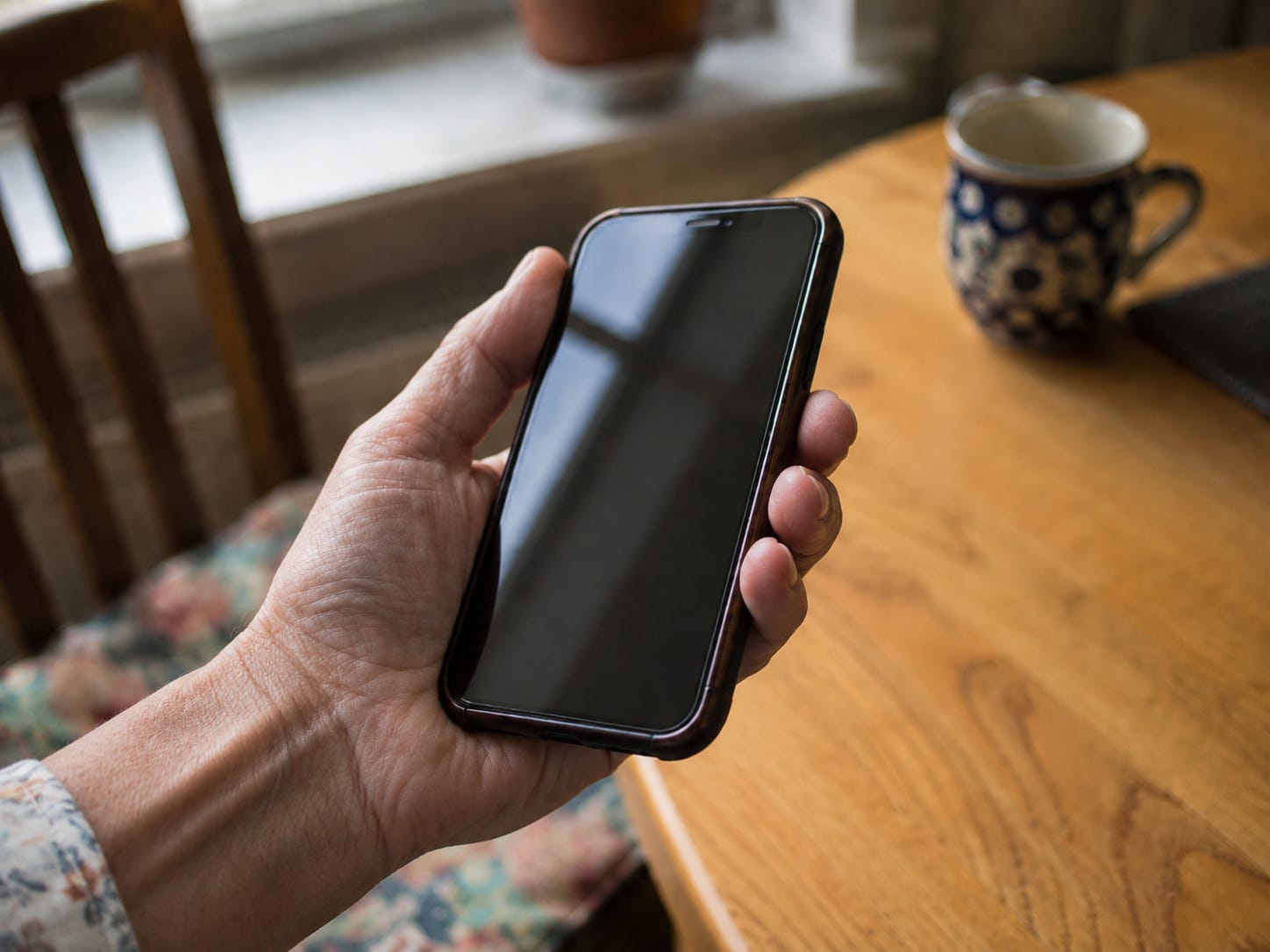
Hold your phone for a moment without unlocking it.
Inside it: your email, which is where the reset link for every other account you own arrives. Your photographs. Your messages with your children. Your bank, or the app that opens your bank. Card details saved into a shop you bought from once, in 2019, and haven’t thought about since.
Now picture it face down on a café table, and you two streets away before you notice.
That’s the whole subject here — not the calls or the strangers with a story, but the object itself, and what could be opened in the twenty minutes before you get back to the café.
The answer turns almost entirely on settings. Ones you either changed once, years ago, or have never seen.
The phone changed jobs
It’s still called a phone, which is generous. A phone was a thing you talked into, and losing one meant losing the ability to talk into it.
This is a key ring.
On it is your email, and email is the master key, because email is where you send yourself a new password when you’ve forgotten the old one. Whoever can open your email can, given an unhurried afternoon, open most of the rest.
A stolen wallet is a bad week. Cards canceled, cards reissued, a nuisance and a form to fill in. A phone that opens is a different category of problem, because it isn’t holding your money. It’s holding the way you prove that you’re you.
The change arrived one app at a time, each one convenient, each one sensible on its own. That’s why it never felt like something to react to.
Why “be careful” is the wrong instruction
Most of what gets written about phones and safety for people your age is about spotting the villain. The urgent voice on the line. The message from the bank that isn’t from the bank. I’ve written about that side of it myself, including how to handle the password problem, and it’s worth knowing.
But there’s a flaw built into that entire approach, and it isn’t your fault.
Vigilance has to succeed every single time. Every call, every message, every tired Tuesday evening when you’re distracted and the timing is unlucky. The other side has to succeed once.
Nobody wins a game with those rules forever. That has nothing to do with getting older or slower. The arithmetic is against anyone who plays it, at any age.
Settings don’t get tired. They keep working on the day you have flu and on the day you aren’t thinking about any of this, which is what the ten minutes are for.
Five settings, roughly ten minutes
1. A passcode long enough to be boring
Four digits is a lock. Six is a much better lock, and it costs you nothing extra to use, because your thumb learns it inside a week.
While you’re there, deal with the second half of this one, which people miss: what shows on the screen before anyone unlocks it. If your messages preview on the lock screen, then the six-digit code from your bank appears in full to whoever is holding the phone, without them getting past anything at all.
On iPhone: Settings, then Face ID & Passcode. Change your passcode there if it’s four digits. Scroll down and turn off Show Previews, or set it to When Unlocked.
On Android: Settings, then Security & Privacy, then More Security Settings, then Notifications on lock screen. Google’s own guidance is plain about the code itself — use six digits or more.
2. Find My, switched on before you need it
Both systems can show you where your phone is, lock it from a distance, and wipe it if it’s gone for good. None of that works unless it was switched on beforehand, and once the phone is gone there is no way to switch it on.
On iPhone: Settings, then tap your name at the very top, then Find My, then Find My iPhone. Turn on the Find My network as well — it lets the phone be located even when it’s offline, and for up to a day after it’s been switched off. Turn on Send Last Location while you’re there, so a dying battery reports its final position instead of vanishing.
On Android: it’s called Find Hub now, and it’s usually on already if you’re signed in to a Google account. Open it and look anyway. Under Settings, Google, All services, look for Theft protection, and turn on Remote Lock too — that one lets you lock the phone from any browser using just your phone number, which is the fastest thing you can do in the first few minutes.
If there’s a piece of technology you’ve been avoiding because every explanation of it starts three steps in, reply and tell me which one. That’s where a good half of these come from.
3. The setting built for the person who already knows your passcode
This is the least familiar of the five, and the most interesting.
Both Apple and Google noticed the same problem: a thief who watches you type your passcode in a bar or on a train, and then takes the phone. Within minutes they can change your account password and shut you out of your own life while you’re still looking under the table for it.
Their fix works the same way on both systems. Away from the places you normally are — your home, your work — the sensitive actions stop accepting the passcode at all and demand your face or your fingerprint instead. Some of them then make you wait an hour and prove it twice.
Apple’s version is called Stolen Device Protection, and it needs iOS 17.3 or later. Apple’s own instruction is that it “must be turned on before the device is lost or stolen,” which is the same rule as everything else here. On newer phones it may already be on.
On iPhone: Settings, then Face ID & Passcode, enter your code, then Stolen Device Protection. The screen tells you which way it’s set.
On Android: Settings, Google, All services, Theft protection. Turn on Theft Detection Lock, which locks the screen when the phone’s own sensors notice it being snatched and carried off at speed. If your phone offers Identity Check, turn that on too — it’s the direct equivalent of Apple’s feature. It isn’t available on every model yet, so if you don’t see it listed, your phone doesn’t have it.
4. Updates that install themselves
The flaws that let people in get repaired all the time, and the repairs arrive as updates. A phone two years behind is running with faults that have already been published, and published is how the other side finds them.
Turn them on and stop thinking about it. This is the setting with the best ratio of effort to protection in the entire list.
On iPhone: Settings, General, Software Update, Automatic Updates. Turn on everything you see there, including the security responses.
On Android: Settings, then System, then Software update, and turn on automatic downloads. The wording varies between Samsung, Pixel and the rest, so hunt around under System or Security if it isn’t where I’ve said.
5. Let the phone screen the calls
You can’t reliably tell a spoofed number from a real one, and neither can anybody else. But you can arrange for calls from numbers you don’t know to go silently to voicemail, so the ones that matter leave a message and the rest never interrupt anything.
You lose very little by doing it — real people leave messages, and a doctor’s office rings back. The consequence of missing a call from an unknown number is almost always a slightly later conversation, which is a small price for removing an entire category of decision from your day.
On iPhone: Settings, then Apps, then Phone, then Screen Unknown Callers. Choosing Silence sends them straight to voicemail. On older versions of iOS the setting is called Silence Unknown Callers and sits in the same place.
On Android: open the Phone app, go into its settings, and look for Spam and Call Screen. Turn on the spam filtering.
What none of this can do
Settings protect the object. They can’t protect you from being persuaded.
If someone talks you into reading out a code, no setting stops that. If someone convinces you to move money, the phone does exactly what it’s told, because you told it.
The people on the other side have started asking to have these settings switched off, which is a backhanded compliment to how well they work. A call, an official-sounding reason, an instruction to turn off two-factor authentication or Stolen Device Protection so that they can “help secure your account.”
Apple’s position on this is unusually blunt for a company that writes carefully. They will never ask you to disable a security feature. Neither will Google, and neither will your bank.
So keep one rule alongside the five settings: nobody legitimate will ever ask you to turn one of these off. Anyone who does has told you exactly who they are, and you can hang up in the middle of their sentence. You owe a stranger no politeness at all on that particular subject.
The folder and the phone
In September I’m sitting down with my parents to sort out the documents none of them had — the four pieces of paper that decide who speaks for you when you can’t.
I’ve added ten minutes to that afternoon for the phones.
It belongs in the same category, once you look at it properly. A folder someone will need to open, and a set of keys someone will need to hold, both arranged while everything is fine and nothing is urgent. My mother will find the phone part more interesting than the paperwork, which I’m counting on.
One last thing about being bad at this
If you’ve read all of the above with a low background hum of embarrassment — that you should have known, that everyone else presumably knows — put that down.
You were sold a telephone. It quietly became the way into your bank, your correspondence, your photographs and your identity, and neither the shop that sold it to you nor the bank that moved your account onto it wrote to say the rules had changed.
You’re not behind. You were never given the instructions, because nobody printed any.
Ten minutes, five settings, and then you can go back to using it for photographs of the garden and arguing with your sister on the family group chat. Which is what it’s for.
There’s a thread connecting this to the Sunday posts, and it isn’t technology.
Every setting in this article is a decision made once, in advance, so that it doesn’t have to be made again under pressure — which is the same shape as most of what actually protects a mind as it ages. The last three Sunday posts have been about that: what keeps a brain engaged, which kinds of learning do the most for it, and why the fog people blame on age usually has three causes worth chasing. Those are for Plus members, and the whole of August runs as one theme, so joining now still gets you the arc from its opening. This month’s Fun Pack comes with it — twenty-five puzzles on the same theme, printable or on screen. $10 a month, or $97 for the year.
Tuesdays and Fridays stay free, always.
And if someone came to mind while reading this — the friend who still has no passcode, the sister who lost a phone last year and went pale — send it to them. It’s ten minutes of their afternoon. The comments are open too, if you’d rather say it there.


Priceless, thank you!